Mix and match bundles on Shopify: a complete guide
What mix and match bundles are, how to price them, and how to build one on Shopify that charges the right price and tracks stock for every item.
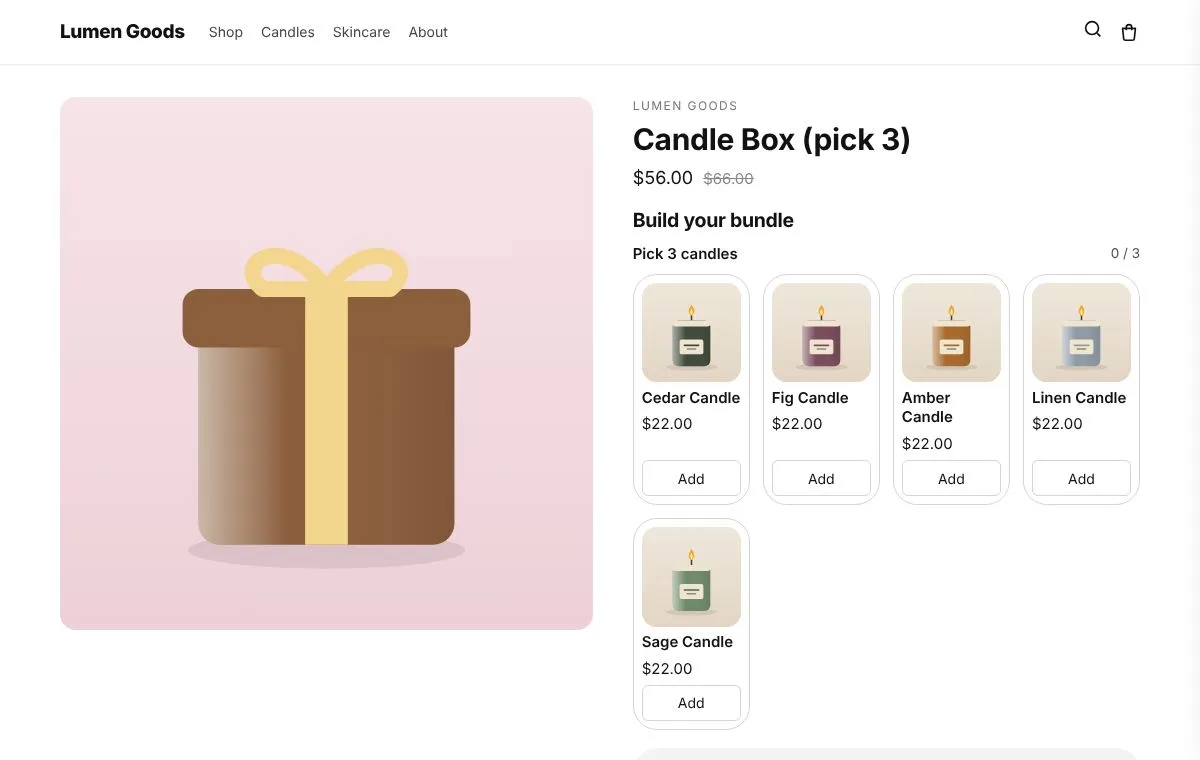
A mix and match bundle lets shoppers choose the items in a set themselves, for example “pick any 3 candles for $56”. On Shopify you build one with a bundle app: you create a bundle product, tell it which products can go in it and how many, and the app charges the bundle price at checkout while each picked item’s stock goes down. This guide covers the choices you’ll make and how CRO Toolbox handles each one.
What is a mix and match bundle?
It is a box the shopper fills. Unlike a fixed set, the contents change from order to order. Common examples:
- Pick 3 for one price: any three candles, socks or snacks for a set price.
- Build your box: choose a base, then extras, in steps.
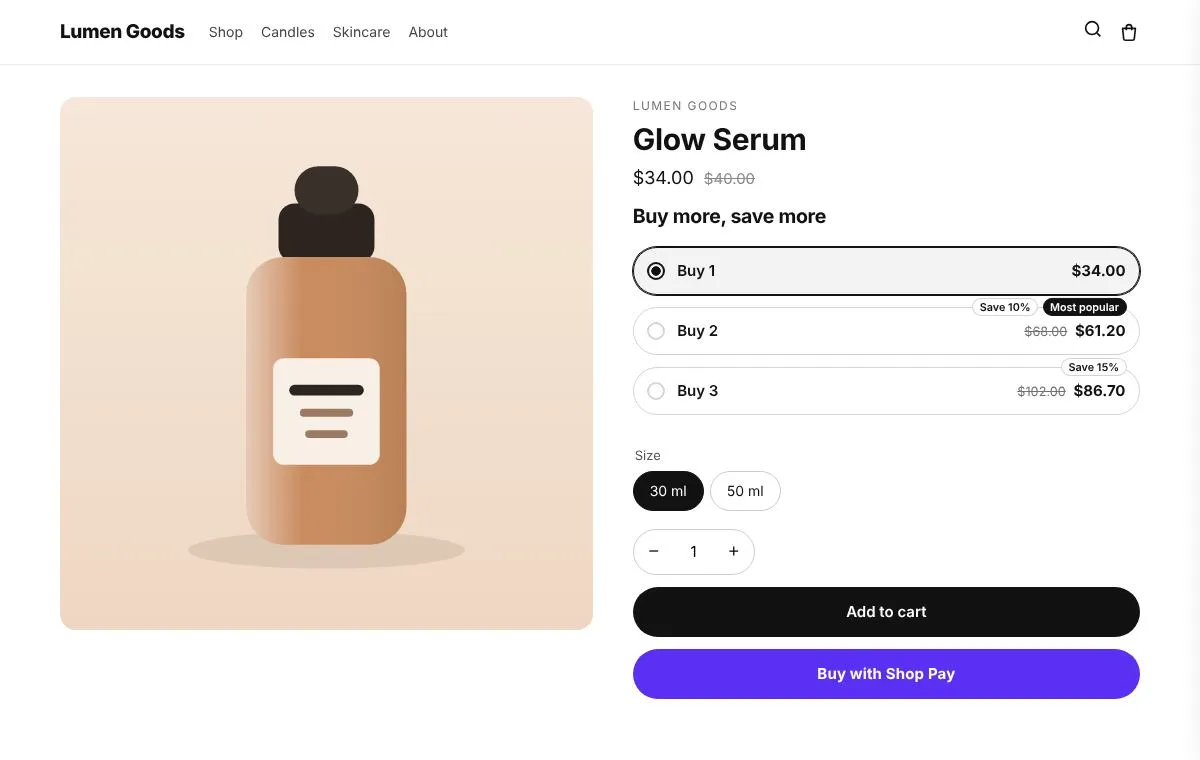
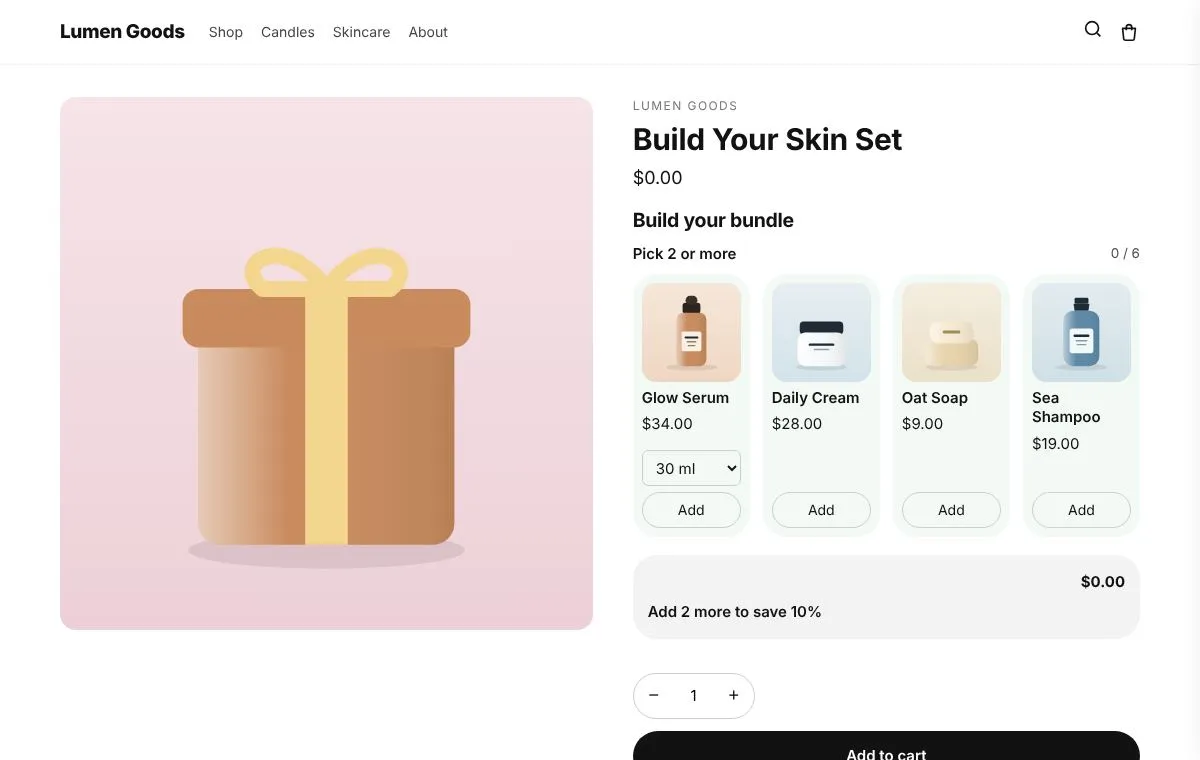
- More items, bigger discount: 2 items 10% off, 3 items 15%, 4 items 20%.
How should I price it?
There are four common ways, and CRO Toolbox supports all of them:
- One price for the whole box, for example $56 for any three candles that usually cost $22 each.
- A percentage off whatever the shopper picks.
- Tiers by item count, such as any 3 for $30 or any 6 for $55.
- A growing discount by percent or by amount: the more they add, the more they save.
A good rule: the box should save a little against buying the items one by one, and the saving should be easy to see. The builder shows “Worth $66, you save $10” as the shopper picks.
How do I build one with CRO Toolbox?
- Open Bundles → Create bundle and choose Mix & match box (or Build your bundle, save more for growing discounts, or Any 3 for one price for tier prices).
- Let the app create the bundle product for you, or pick one you already have. It is published and tagged so it never shows up as an item inside another bundle.
- Add steps. Each step has a label, a minimum and a maximum, and either a list of products or a whole collection. For example “Pick 3 candles” (min 3, max 3) from the Candles collection.
- Choose the price.
- Click Add to theme in the “Get it on your store” card. The theme editor opens with the Bundle builder block on the bundle product’s page. Place it above your Add to cart button and save.
The editor’s live preview uses your real products, so you can pick items and watch the price change before you save.
What happens at checkout?
The picks become one bundle line in the cart at the bundle price. At checkout, Shopify splits the bundle into the items the shopper chose, so each item’s stock goes down and the order shows exactly what to pack. You don’t need to keep stock for the bundle product itself.
Bundle pricing at checkout runs when the app is installed from the Shopify App Store (or on Shopify Plus).
Can shoppers build the bundle while browsing?
Yes. With Build while browsing, shoppers add items with + Add to bundle on collection pages and on product pages, and a small tray follows them across the store with each step’s progress. When the box is full they add it to the cart or go straight to checkout.
This suits stores with large collections, where scrolling a long builder on one page would be tiring.
How do I make the builder look like my theme?
Bundles → Design has ready made looks (My theme, Black and white, Fresh green, Blue, Big cards, Sharp and compact) and lets you change the heading, button words, columns, a sticky summary and colours. You can also use your theme’s own Add to cart button instead of the builder’s.
Common mistakes
- Too many choices in one step. If a step uses a big collection, the builder shows “Show more” and a search box; still, a focused collection converts better.
- No clear saving. If the box costs the same as the items, say why it’s worth it (a gift box, free shipping) or add a small discount.
- Sold out items. Turn on hiding sold out items so shoppers don’t pick something you can’t ship.
Which plan do I need?
Every bundle type is on the Free plan, within its three offer slots. Paid plans have unlimited offers. See pricing.