Countdown timers without fake urgency
When a countdown timer helps and when it hurts trust, and how to use real deadlines like sale ends and order cut off times on Shopify.
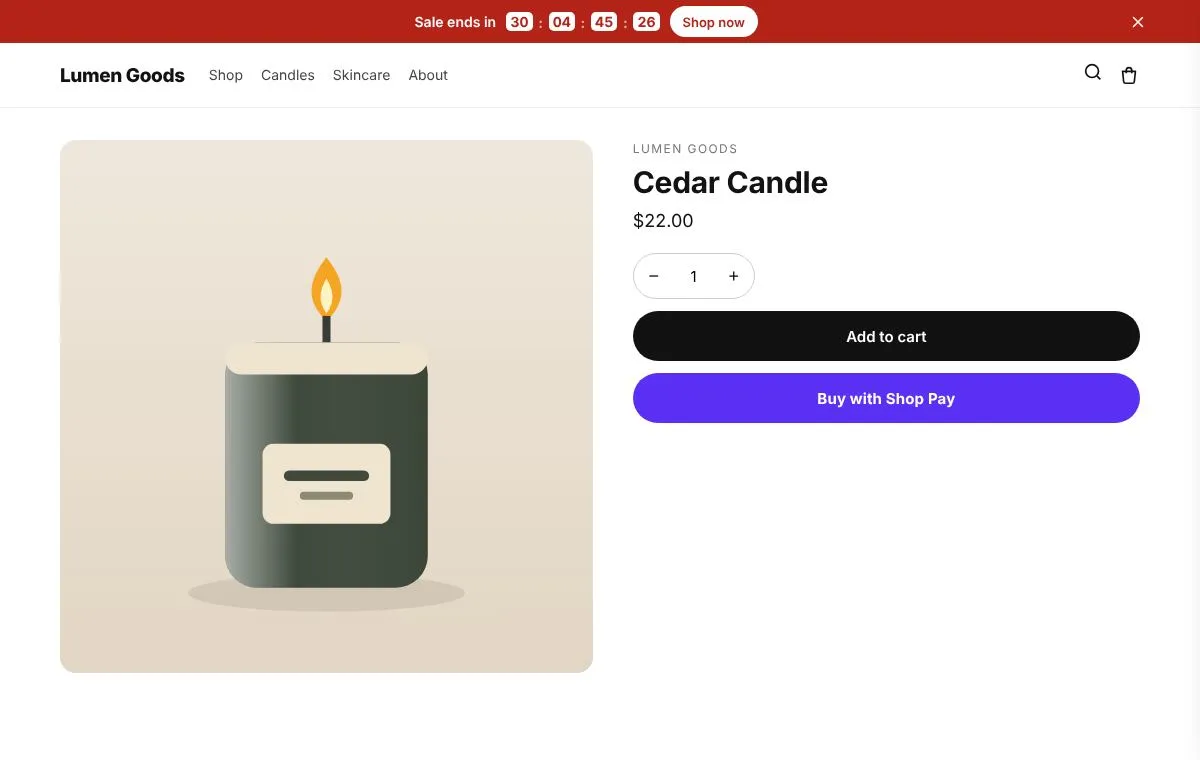
A countdown timer helps when it counts down to something real: the end of a sale, today’s order cut off for next day delivery, a launch. It hurts when it resets on every visit or counts down to nothing, because shoppers notice, and consumer protection rules in many countries treat false urgency as misleading. Use timers for real deadlines only, and say what the deadline is.
When is a countdown timer a good idea?
- A sale with an end date. “Weekend sale ends in 2 days 14 hours.”
- A daily order cut off. “Order in the next 3h 12m for dispatch today.”
- A launch or a drop. “New collection in 1 day.”
- A per visitor offer that really expires. For example a welcome discount that ends after a set time, if your discount really ends then.
When does it hurt?
- The timer starts again every time the page loads.
- The “sale” never ends.
- The deadline is hidden: shoppers can’t tell what happens at zero.
Shoppers compare tabs, come back the next day and talk to each other. A fake timer costs more trust than it earns.
Which kind of timer should I use?
CRO Toolbox’s countdown timers have three modes, each for a different real deadline:
- Fixed end date: for sales and launches.
- Daily cut off: for dispatch times; it resets each day because the deadline really does.
- A timer per visitor: for offers that really expire for each shopper.
Timers can sit in the header, the footer, the home page, product pages and the cart, each with its own design.
Are there better ways to show urgency?
Often, yes:
- A delivery estimate: “Order within 2h 15m and get it Thu to Sat” answers the real question, when it arrives.
- Real low stock: “Only 3 left” from your actual stock, shown only below a threshold you choose.
- Free shipping progress: “Spend $12 more for free shipping” is urgency the shopper controls.
How do I set up an honest countdown?
- In CRO Toolbox open Storefront → Countdown timers and choose the place (for example the header).
- Pick the mode that matches your deadline and set it.
- Write text that names the deadline: “Weekend sale ends in”, not “Hurry!”.
- Pick a look: boxes, circles, flip cards or plain numbers.
- Turn it off or change the text when the deadline passes.
Quick checklist
- The deadline is real and named
- The timer doesn’t reset for the same offer
- The offer ends when the timer ends
- Delivery estimates and real stock levels before invented urgency