Shopify thank you page ideas that bring the next order
Shopify thank you page ideas: a discount for the next order, a short message, follow us buttons and product suggestions, and how to add them with CRO Toolbox.
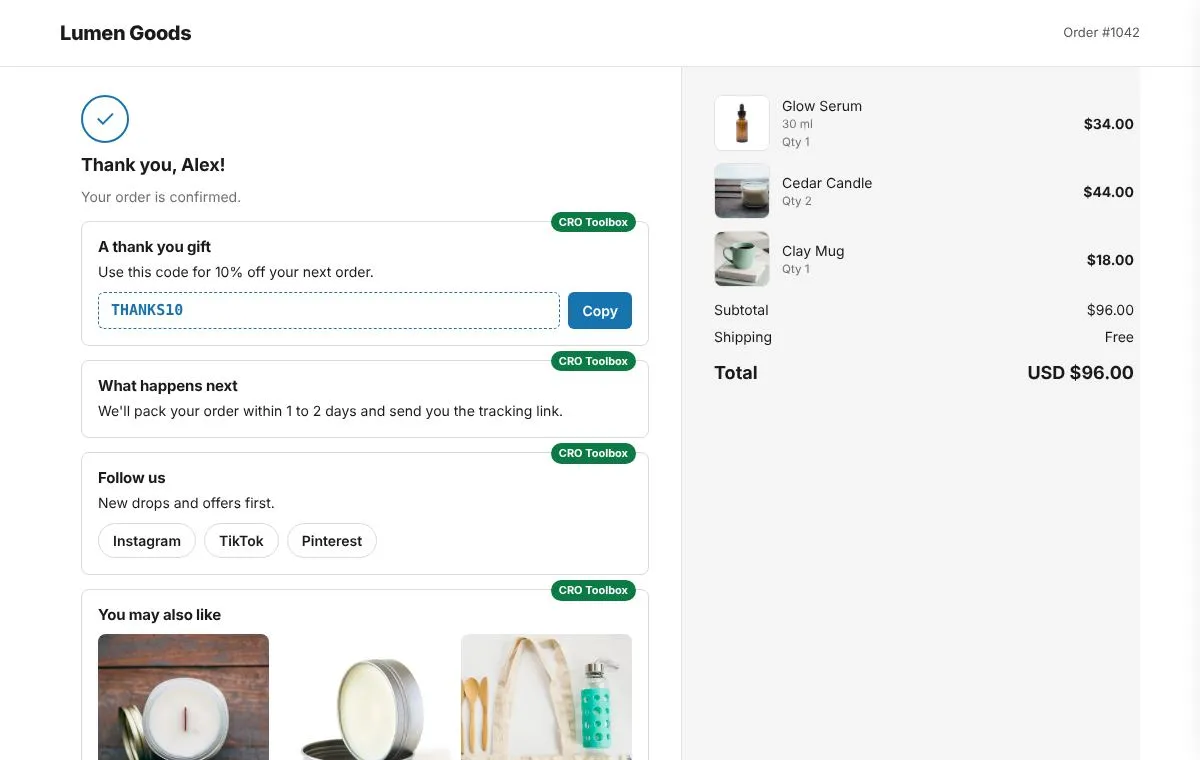
The Shopify thank you page is the one page every buyer sees, right after they pay, so it is a good place to plan the next order. What works there is short and useful: a discount code for the next order, a clear message about what happens now, links to follow you, and a few products to discover. Below is what to put on the page, what to leave off, and how to add it with CRO Toolbox.
Thank you page or order status page?
In Shopify’s checkout editor these are two separate pages. The Thank you page is shown once, right after checkout. The Order status page is the one customers open later, for example from their order confirmation email.
CRO Toolbox’s modules go on the Thank you page. If you want something that sells when customers come back to check their delivery, look at the Track page instead (more on that below).
What should go on the thank you page?
The shopper has just finished buying. They want to know the order went through and what happens next. Anything you add should sit under that confirmation and stay short. CRO Toolbox offers four modules there.
A discount for the next order
A code with a copy button, so the customer has a reason to come back. For example: “A thank you gift: 10% off your next order with THANKS10.”
In the app you can enter an existing code from Discounts, or set a percent and click Create this code in Discounts. The app creates it as a code for everything, once per customer, with no end date. You can change it later under Discounts in Shopify, for example to add an end date or a minimum order.
Keep the discount modest. A code that is bigger than what you offer new visitors teaches customers to wait for the thank you page.
A message
A short note from you. Good uses:
- When the order ships and how long delivery usually takes
- How to reach you if something is wrong
- A tip for using the product in the first days
- A thank you that sounds like a person, not a template
You can pick the colour of the message box: blue for information or green for good news.
Follow us
Buttons to your Instagram, TikTok, WhatsApp or any other link starting with https. This suits stores that post useful content, such as how to guides, new arrivals or behind the scenes. If you rarely post, leave it out.
You may also like
Products from a collection you choose, linking to your store. You set how many products to show, from 1 to 6, and the link text. Products the shopper just bought are left out.
Pick the collection with care. Good choices are refills, accessories or a small “new in” collection. A random list of best sellers is less useful than a few products that go with what people usually buy.
What about Buy again?
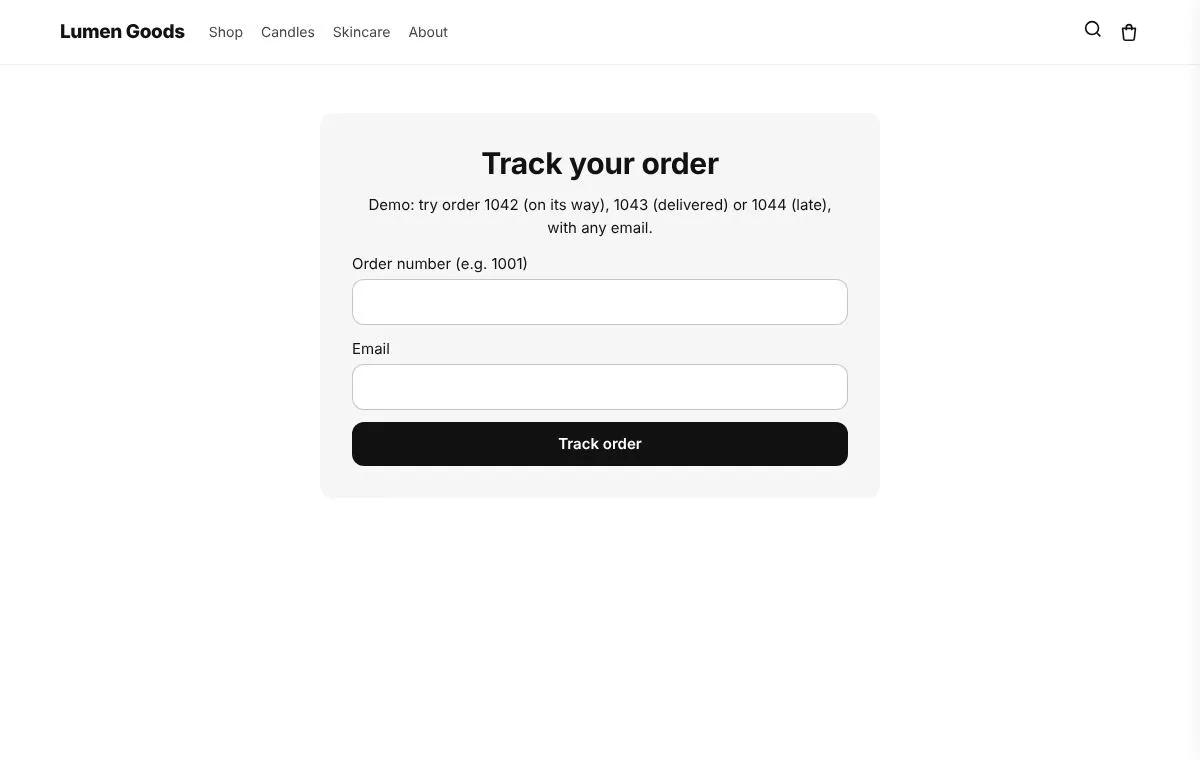
Buy again is not one of the thank you page modules in CRO Toolbox. It lives on the Track page, which customers open when they check their delivery. The app’s Track page can show a discount code for the next order, Buy again, a message for delayed orders and product recommendations under the order. The Track page is on the Growth plan at $19.99 a month. See the order tracking page for details.
What should I leave off?
- Too many modules. One or two well chosen modules read better than four stacked boxes.
- Pop ups and loud banners. The shopper wants their confirmation, not another sales pitch.
- Discounts that undercut the order. A code that would have saved them money on the order they just placed can feel unfair.
- Promises you can’t keep. If delivery times vary, say so in the message.
How do I add the modules with CRO Toolbox?
- In the app, open Cart & Checkout and choose Thank you page in the Checkout group.
- Under Add a module, pick a module and add it. Repeat for each one you want.
- Fill in each module: the Heading, then the code, message, links or collection.
- Use Up and Down to put the modules in the order you want, and keep Show it on for the ones that should appear. The preview on the page shows how they will look.
- Save.
- Once, in Shopify’s checkout editor, open the Thank you page, click Add app block and choose CRO Toolbox thank you page. The app has an Open checkout editor button that takes you there.
- Place a test order and check the page.
Thank you page modules work on every Shopify plan. They are on the CRO Toolbox Free plan with 2 modules on at once; Starter at $5.99 a month and the plans above have no module limit. See pricing, the checkout help guide and the thank you page feature page.
How does this fit with the after purchase offer?
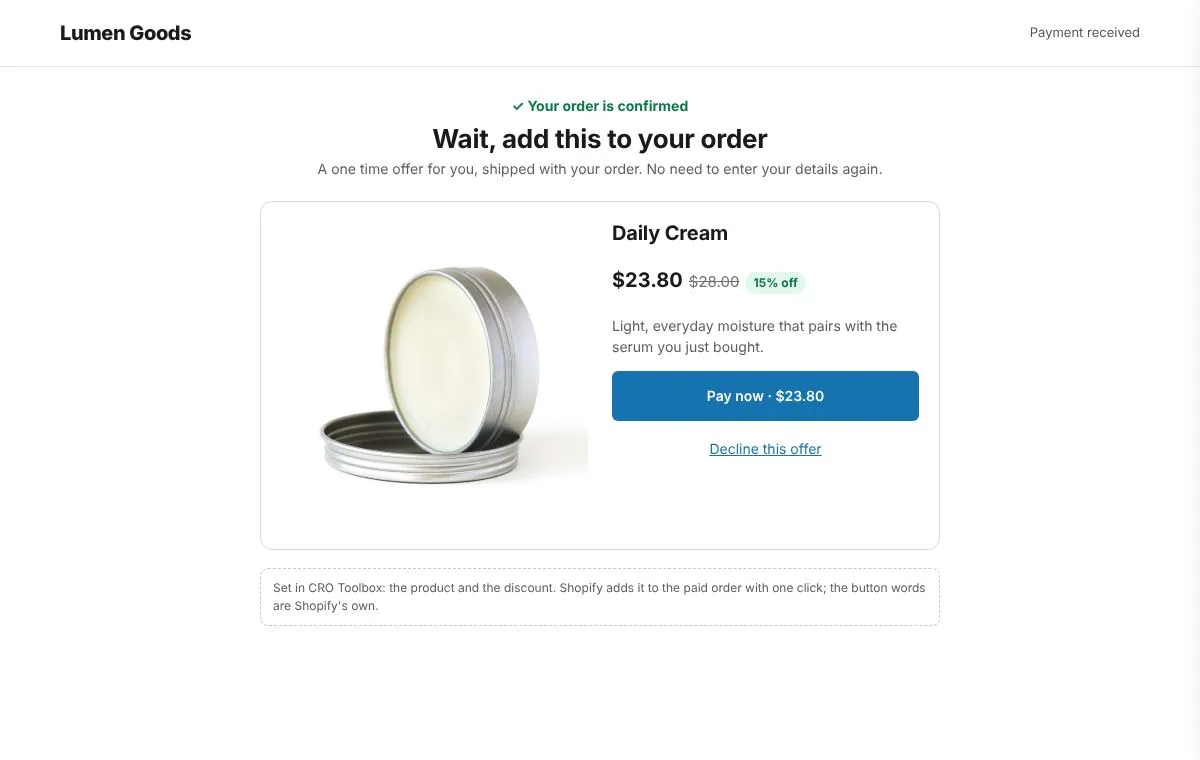
The after purchase offer comes first: right after payment, before the thank you page, the shopper can add one product to the order they just placed in one click. The thank you page comes next and looks ahead to the next order. Together they cover both moments. The post purchase upsell page explains the offer, and the post purchase upsell examples article has ideas for what to offer.
How do I know if it works?
Track how often the next order code is used. In Shopify you can see how many times a discount code was used under Discounts. Over a few months, also look at how many customers order a second time. For a wider view of what changes buyers’ behaviour across the store, see the Shopify CRO guide.
Quick checklist
- One or two modules, not all four
- A modest next order code, created once per customer
- A short message about shipping or how to reach you
- Follow us only if you post useful content
- A small, relevant collection for You may also like
- The CRO Toolbox block added once to the Thank you page in the checkout editor
- A test order to check the page