How to add a size chart to Shopify
How to add a size chart to Shopify product pages: with your theme's pop up block, or with an app that gives each product its own chart and a size finder.
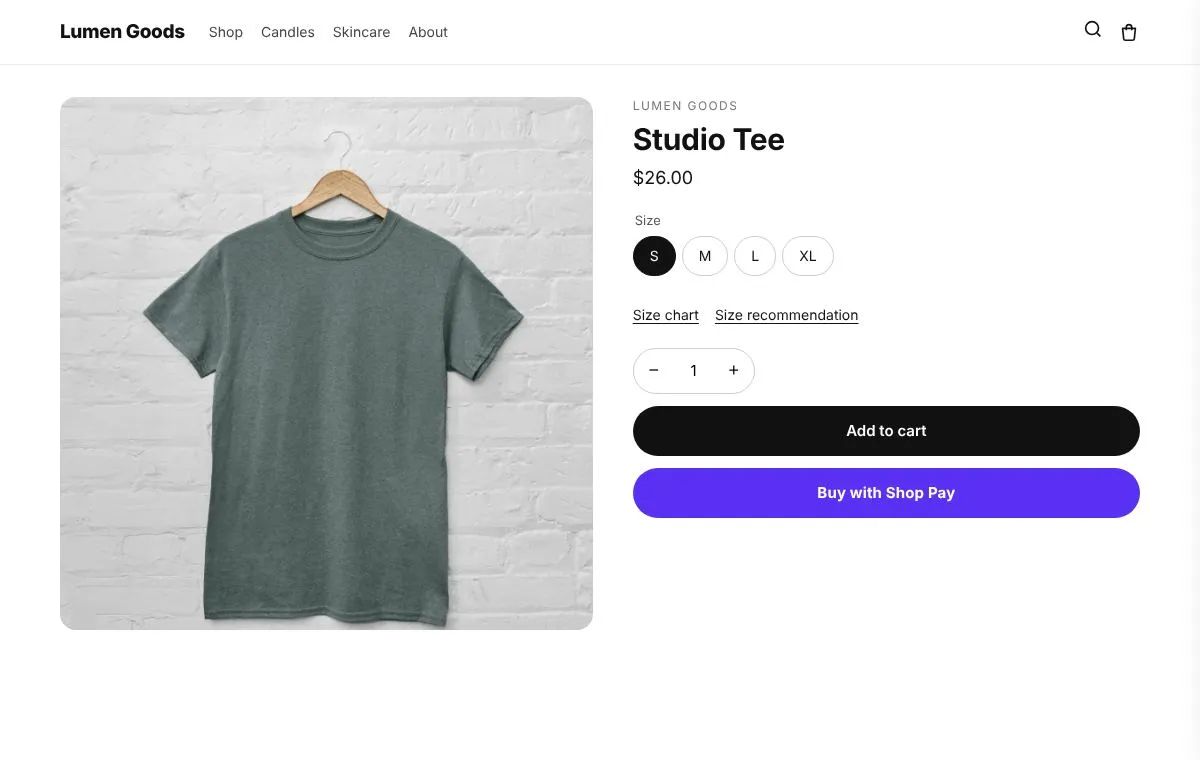
To add a size chart to Shopify, put the chart where shoppers choose a size: a “Size chart” link next to the size picker that opens the chart in a window. You can do it for free with your theme’s pop up block and a Shopify page that holds the table, which works when one chart fits every product. When different products need different charts, or you want a size finder that recommends a size, use a size chart app. Here is how to do both, and what a good chart includes.
Where should a size chart go on a product page?
Right next to the size picker. That is the moment the shopper is unsure, so the link should be in view without scrolling. A chart in the description or in a footer page helps far less, because most shoppers never find it.
Open the chart in a window over the page, so the shopper keeps the product and the Add to cart button where they left them.
How do I add a size chart without an app?
Most free Shopify themes, Dawn included, have a pop up block on the product page that opens the content of a page.
- In your Shopify admin open Online Store → Pages and add a page called “Size chart”.
- Add a table with your sizes and measurements. Keep it short: one row per size.
- Open Online Store → Themes → Customize and go to the product page template.
- Add the Pop up block (some themes call it a popup or modal block) under the variant picker.
- Set the link text to “Size chart” and choose the page you made. Save.
This shows the same chart on every product that uses that template. If you sell tops and trousers, you need a second product template for each chart, and you assign each product to the right template.
When do I need a size chart app?
An app is worth it when:
- Different products need different charts: tops, trousers, shoes and kids sizes.
- You want cm and inches without writing every table twice.
- Shoppers still ask “which size am I?” and a size finder could answer from their height, weight or usual size.
- You add products often and want charts to follow a collection or a tag instead of a template.
What should a good size chart include?
- The measurements that matter for that product: chest and length for tops, waist and inseam for trousers, foot length for shoes.
- How to measure, in one or two lines, ideally with a simple drawing.
- Both units, cm and inches, if you sell abroad.
- A fit note when a product runs large or small, such as “Runs large, size down”.
- Body or garment? Say which one the numbers describe. Mixing them up is a common reason for wrong sizes.
Does a size chart reduce returns?
Wrong size is the most common return reason for clothing and shoes, and a chart in the right place answers that question before the order. Check the reasons on your own returns in Shopify to see how much of your returns it explains. More ideas in how to reduce returns on Shopify.
How does CRO Toolbox help?
The size guide in CRO Toolbox adds a Size chart link and a Find my size link next to the size picker. It is on the Starter plan ($5.99 a month, or $59 a year, with a 14 day free trial) and every plan above it: Growth ($19.99 a month) and Pro ($39.99 a month).
- Charts with your own columns (chest, waist, inseam) and a switch between cm and inches.
- A garment drawing or your own picture, and a note on how to measure.
- Different charts for all products, or for chosen products, collections or tags.
- A size finder that asks only the questions you pick (height, weight, the size they usually wear, how they like it to fit) and answers only from the ranges you set. It never guesses.
- Your own fit note shown with the answer.
Set it up in the app under Section library → Size guide, then add the Size guide block to the product page in the theme editor. Step by step: size guide help. More on the feature: size guide and the Shopify size chart page.
Quick checklist
- The “Size chart” link right next to the size picker
- The chart opens in a window over the page
- The right measurements for each kind of product
- A short “how to measure” note
- cm and inches if you sell abroad
- A fit note on products that run large or small
- Return reasons checked again after a month