How to show an estimated delivery date on Shopify
How to show an estimated delivery date on Shopify product pages: a fixed line in your theme, transit times at checkout, or a live estimate with an order cut off time.
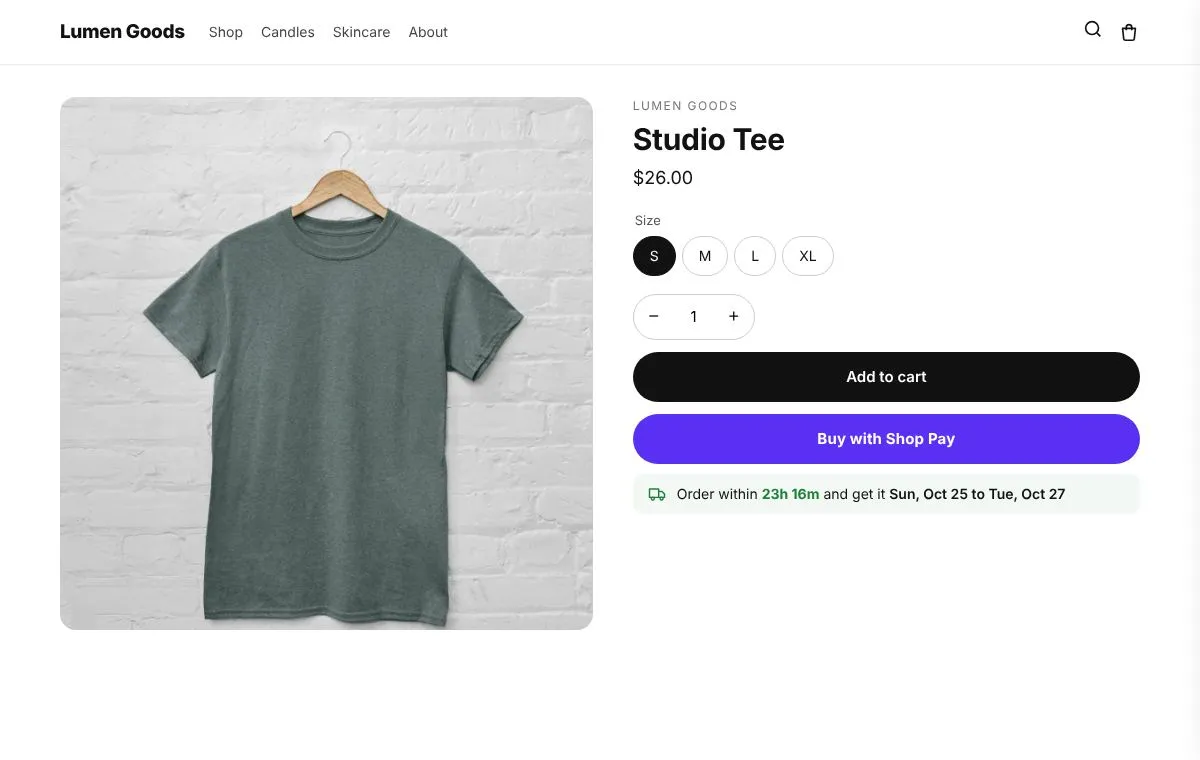
To show an estimated delivery date on Shopify, put one short line under the Add to cart button that says when the order arrives, such as “Order within 2h 15m and get it Thu to Sat”. You can add a fixed line for free with a text block in your theme, and Shopify checkout can show transit times next to each shipping rate. For a date that updates by itself with your order cut off time, days off, holidays and the shopper’s country, use a delivery estimate app. Here is how to do each, and how to keep the date honest.
Why show a delivery date on the product page?
“When will it arrive?” is one of the questions shoppers ask most before they buy, especially before holidays and birthdays. If the answer only appears at checkout, some shoppers leave to find it, and some ask your support instead. A date next to the buy button answers it at the moment they decide.
A date also reads better than a range of days. “Arrives Thu to Sat” is easier to trust than “3 to 5 business days”, because the shopper does not have to count weekends.
How do I add a delivery line without an app?
Most Shopify themes, Dawn included, have a text block on the product page.
- Open Online Store → Themes → Customize and go to the product page template.
- Add a Text block under the buy buttons.
- Write a fixed line, for example “Ships within 1 business day. Delivery in 3 to 5 business days.”
- Save, and check it on a phone.
This works when your times rarely change. It cannot show a real date, count down to today’s cut off or change for weekends and holidays, so keep the wording general.
Can Shopify show delivery times at checkout?
Yes. In Settings → Shipping and delivery, each shipping rate can carry a transit time, and checkout shows it next to the rate. That helps at the last step, but the shopper only sees it after entering an address. The product page line is what answers the question earlier.
What makes a delivery estimate accurate?
An estimate is only useful if it is right. Build it from four things you already know:
- Your order cut off time. Orders placed before it ship today; after it, tomorrow.
- Your processing days. How long you take to pack an order, and which days you do not ship.
- Holidays. Days your store or your carrier is closed.
- Delivery time per country. Local orders and international orders arrive at very different times.
Then show a range, not a single day, and lean towards the later end. A parcel that arrives early pleases people; one that arrives late after a promised date creates a support ticket.
Should I add a countdown to the cut off time?
Only when the cut off is real. “Order within 2h 15m to ship today” is useful because it is true and it ends. A timer that resets on every visit is fake urgency, and shoppers notice. More on this in countdown timers without fake urgency.
Where should the delivery date show?
- Product page: right under Add to cart, in one line, so it does not push the button down on a phone.
- Cart: the same estimate again, so it is still in view at the moment of checkout.
- Order confirmation and tracking: the date you promised, so customers can check it. An order tracking page that sells keeps them on your store while they wait.
How does CRO Toolbox help?
The delivery estimate in CRO Toolbox shows “Order within 2h 15m and get it Thu to Sat” on product pages and in the cart, worked out for each shopper. It is on the Starter plan ($5.99 a month, or $59 a year, with a 14 day free trial) and every plan above it: Growth ($19.99 a month) and Pro ($39.99 a month).
- Your order cut off time, with a countdown to it that ends when the cut off passes.
- Days you do not ship and holidays, skipped automatically.
- Delivery times per country, so international shoppers see their own dates.
- Your own wording and design, on the product page and in the cart.
The free shipping bar is on the Free plan, so you can pair the date with “You’re $18 away from free shipping” in the cart. Set the estimate up in the app under Section library → Delivery estimate. Step by step: bars, timers and product page tools help. More on the feature: delivery estimate and the Shopify delivery date estimate page.
Quick checklist
- One delivery line right under Add to cart
- A date range (“Thu to Sat”) rather than a count of days
- Your real cut off time, processing days and holidays
- Delivery times for each country you ship to
- A countdown only to a real cut off
- The same estimate in the cart
- Transit times set on your shipping rates for checkout
- Checked on a phone, with the button still in view