Shopify product page conversion checklist
A Shopify product page conversion checklist: photos, price and saving, reviews, trust badges, delivery dates, stock messages, sticky add to cart, size guide, FAQ and one offer.
A Shopify product page converts when it answers the shopper’s questions before they have to ask: what it looks like, what it costs, whether others liked it, whether it is safe to buy, when it arrives and whether it fits. Go through the checklist below and fill the gaps, but don’t add everything at once: every extra widget pushes the Add to cart button further down. For each item you’ll find what it is and which CRO Toolbox widget does it, where one exists.
How much is too much?
A product page has one job: help the shopper decide and press Add to cart. A few rules keep it clear:
- Near the button: price, options, at most one offer, and one line about stock or delivery.
- Further down: reviews in full, questions, details and policies.
- One answer per question. If two widgets answer the same doubt, keep the better one.
- Check on a phone. Most of what crowds a page shows up first on a small screen.
- One change at a time. Compare the same number of days before and after, so you know what helped.
For the wider picture of conversion rate optimization, see Shopify CRO.
1. Photos and video
What it is: clear pictures of the product from every side, in use, at a size the shopper can judge, and for every colour you sell.
Which widget: your photos live in Shopify’s own product media; CRO Toolbox doesn’t change them. Two sections can add to them: the video carousel shows short videos, each linked to a product with its price and an Add to cart button, and before and after puts two pictures side by side with a handle shoppers drag, for products whose result shows in a picture. Both are on the Starter plan.
2. Price and saving
What it is: the price where the eye lands first, and a saving only when it is real.
Which widget: Shopify’s compare at price shows a crossed out price. If you sell more than one unit, quantity breaks in Offers → Upsell offers show each tier with its saving, and a frequently bought together box shows the total and the saving for the set.
3. Reviews near the price
What it is: proof from real customers where the shopper is deciding.
Which widget: product page reviews show a star rating next to the price, a snippet card with one review, or a full list with a Write a review button. You collect the reviews in Customer reviews: text, photo and video reviews, and shoppers can write reviews that you approve first. Both are on the Free plan.
4. Trust badges and a guarantee
What it is: a short answer to “is it safe to buy here?” next to the button.
Which widget: trust badges show badges like secure checkout, delivery and returns under Add to cart, plus the payment methods your store accepts, in a row or in boxes. A guarantee shows a money back or free returns promise with a seal next to Add to cart. Only show what your store really offers, and promise only what your refund policy says.
5. Delivery dates
What it is: when the order will arrive, before the shopper asks.
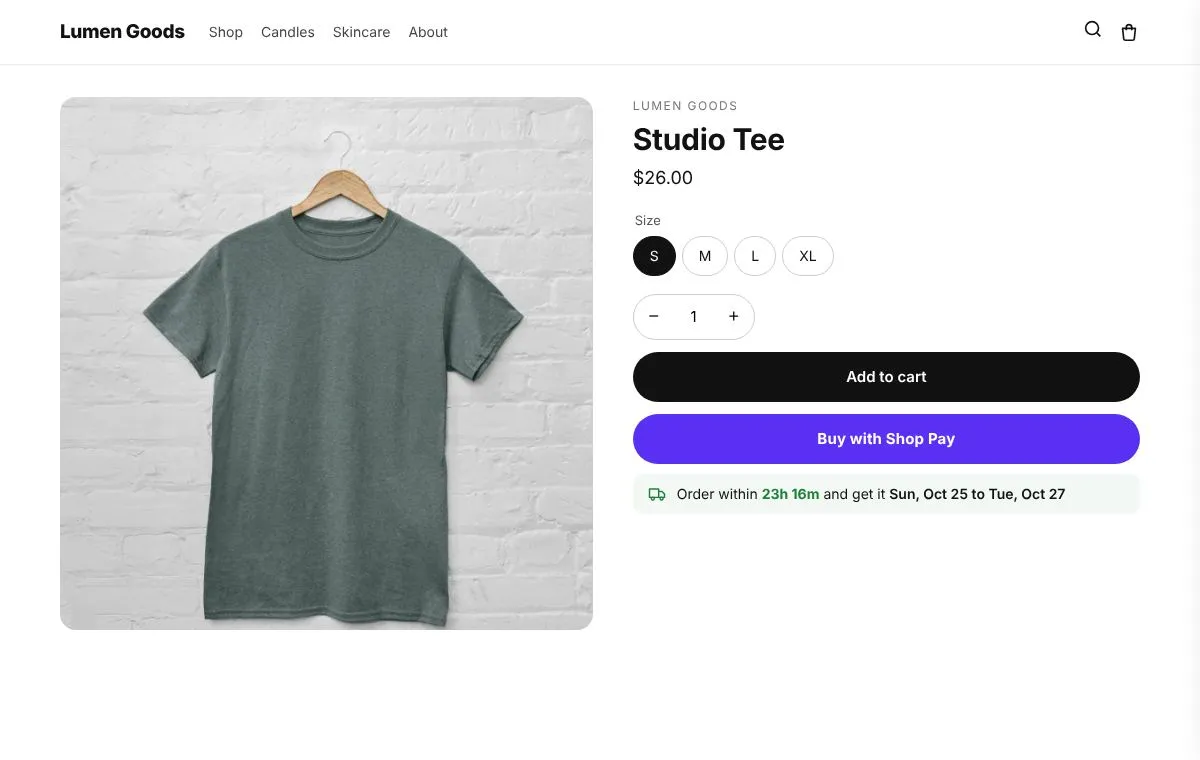
Which widget: the delivery estimate shows “Order within 2h 15m and get it Thu to Sat”, worked out from your order cut off time, days off, holidays and delivery times per country. Add the Delivery estimate block under the price or Add to cart, and on the cart page if you like. It is on the Starter plan.
6. Stock messages
What it is: honest information about availability.
Which widget: stock urgency shows “Only 3 left” from your real stock when a variant is at or below the number you set, with an optional stock bar. It works for products that track stock and stop selling at zero. For sold out products, back in stock shows “Notify me” and lists the requests in the app, and “Pre order” lets you keep selling products you will restock. Both are on the Free plan. Real stock is better than invented urgency; see countdown timers without fake urgency.
7. Sticky add to cart
What it is: the button within reach on long pages, especially on phones.
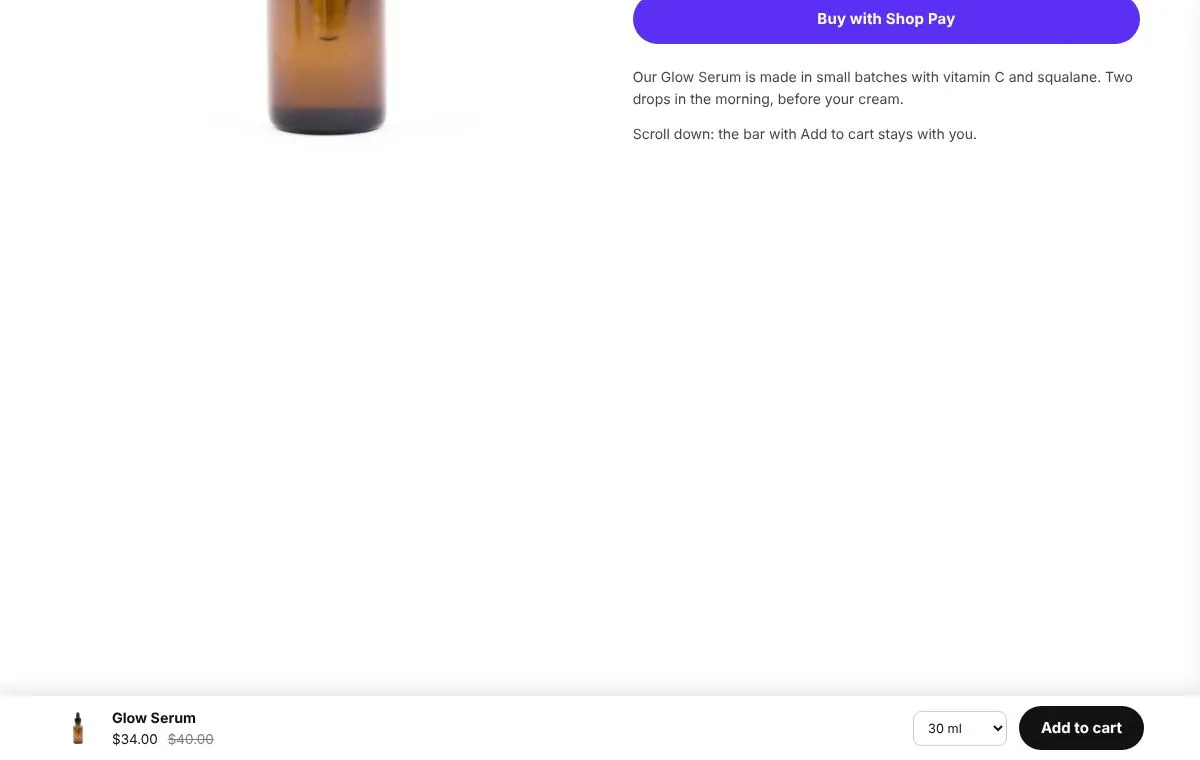
Which widget: sticky add to cart shows a bar with the product, price and Add to cart once shoppers scroll past your button. You choose the top or bottom of the screen, which devices, whether to show the product image, and whether shoppers can pick a size or colour in the bar. It is on the Free plan.
8. Size guide
What it is: a fast answer to “will it fit?” for clothing, shoes and anything with sizes.
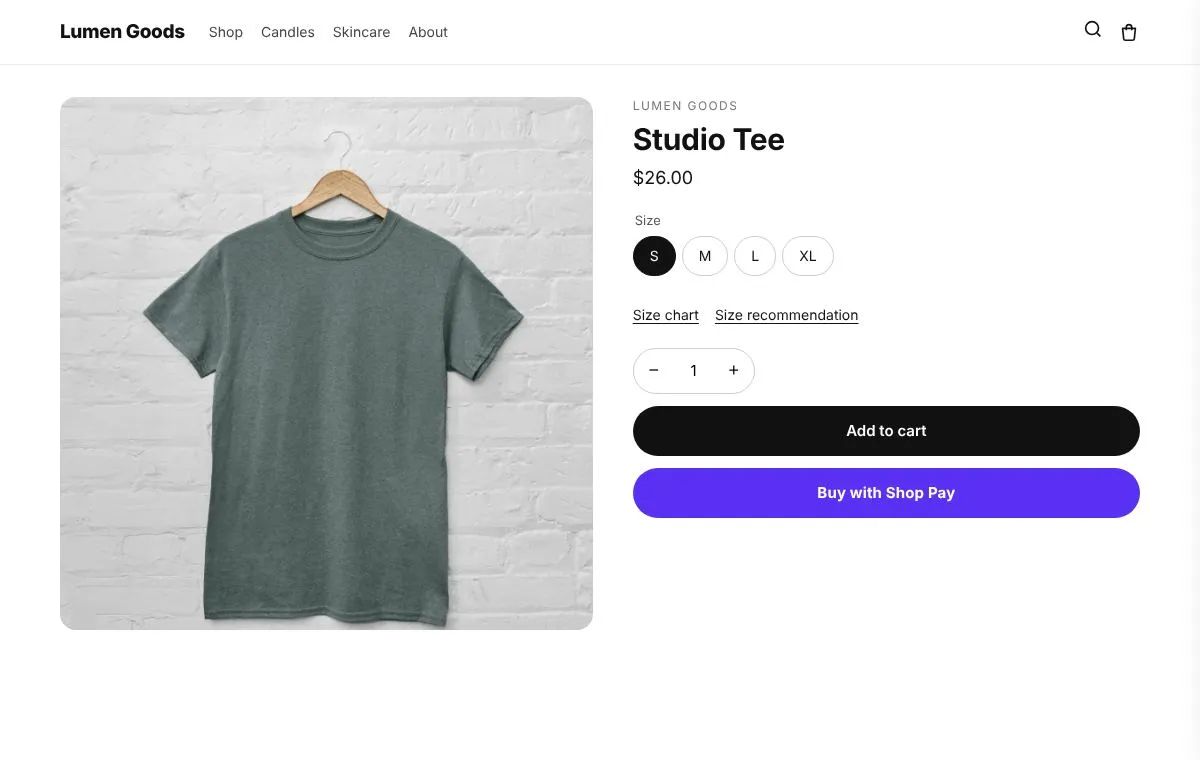
Which widget: the size guide adds Size chart and Find my size links by the size picker. The chart switches between cm and inches, and the size finder asks only the questions you pick and answers from the ranges and sizes you set; it never guesses. It is on the Starter plan. Setup steps are in the size guide help guide.
9. FAQ and product details
What it is: answers to the questions you get by email, on the page.
Which widget: the FAQ section groups questions with buttons and a search box, and one copy can show only one group, for example Shipping. Product details tabs put details, shipping and returns in tabs or an accordion, so a long page stays short. Both are on the Free plan.
10. One clear offer
What it is: one good reason to buy a little more.
Which widget: pick one per product: quantity breaks in Offers → Upsell offers, a frequently bought together box (see how to add frequently bought together), or a cross sell in Offers → Cross sell offers. Two or three offers stacked on the same page compete with each other and with Add to cart.
How do I set these up?
- In the app, open Settings → Theme and app embeds and turn on the Conversion boosters embed. Sticky add to cart, trust badges and stock urgency run from it. See turn on the app embeds.
- Open Section library → Sticky add to cart. It opens the Conversion boosters page, where you switch on Show the sticky bar and Show trust badges, turn on stock urgency and set its threshold, then save.
- For blocks such as the delivery estimate, the size guide, the FAQ and product page reviews, open each one in the Section library, set the content and style with the live preview, then click Add to theme and place the block in the theme editor. Click Save there.
- Open a product page on your phone and check what shows above the Add to cart button.
- Watch your add to cart rate and conversion rate in Shopify’s Analytics. On the Growth plan ($19.99 a month) and above, the holdout test shows a share of shoppers no app widgets, so you can compare.
The bars and product page tools guide and the storefront sections guide cover each widget’s settings.
Which plan do I need?
Product page reviews, trust badges, the guarantee, stock urgency, back in stock, sticky add to cart, the FAQ and product details tabs are on the Free plan. The delivery estimate, size guide, video carousel and before and after are on Starter, at $5.99 a month. The Free plan also lets you try 1 Starter feature. See pricing.
Quick checklist
- Clear photos for every variant
- The price easy to find, savings only when real
- Star rating next to the price
- Trust badges or a guarantee you can stand behind
- A delivery estimate near the button
- Stock messages from real stock
- Sticky add to cart on long pages
- A size guide for products with sizes
- FAQ and details lower down
- One clear offer, not three
- Checked on a phone, one change at a time